The Settings section in CandyDocs allows you to fully customize your documentation portal with your brand identity, domain configuration, and theme preferences.
This guide walks you through how to configure brand name, subdomain, custom domain, theme colors, logos, and favicon from the Admin Dashboard.
Accessing Settings
Log in to your Admin Dashboard.
From the left sidebar, click Settings.
Open the Preferences tab.
You will see all branding and customization options in one place.
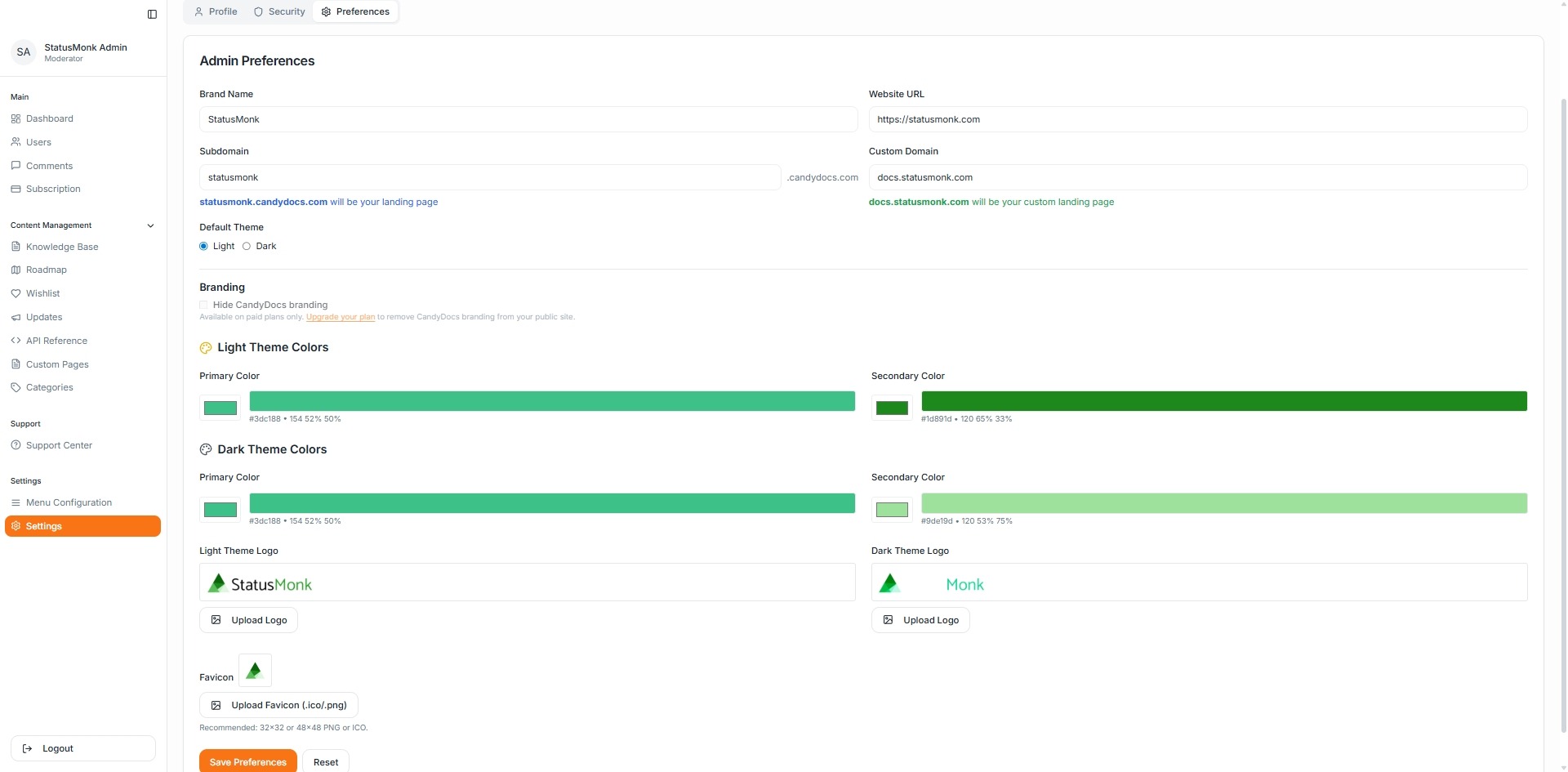
Brand Name & Website URL
At the top of the page, you can configure:
Brand Name – Your product or company name displayed across your documentation portal.
Website URL – Your main website link.
This ensures consistent branding across your public documentation pages.
Subdomain Setup
CandyDocs provides a default subdomain in the format:
yourbrand.candydocs.com
To configure:
Enter your preferred subdomain name.
Save preferences.
This will become your public landing page if no custom domain is configured.
Custom Domain Configuration
You can connect your own domain such as:
docs.yourproduct.com
To set up a custom domain:
Enter your custom domain name.
Configure DNS settings as instructed (CNAME or required record).
Save preferences.
Once verified, your custom domain will become the primary public documentation URL.
This improves SEO authority and brand consistency.
Default Theme Selection
You can choose between:
Light Theme
Dark Theme
This sets the default appearance of your documentation portal for users.
Theme Color Customization
CandyDocs allows you to customize colors separately for:
Light Theme – Primary & Secondary colors
Dark Theme – Primary & Secondary colors
Use the color picker to match your brand guidelines. These colors are applied to buttons, highlights, and interactive elements across your portal.
Uploading Brand Logo
You can upload separate logos for:
Light Theme Logo
Dark Theme Logo
Click Upload Logo.
Select your image file.
Save preferences.
Using theme-specific logos ensures proper visibility in both light and dark modes.
Favicon Setup
You can upload a favicon (.ico or .png format).
Recommended sizes:
32x32 px
48x48 px
The favicon appears in browser tabs and bookmarks.
Hide CandyDocs Branding
If you are on a paid plan, you can hide CandyDocs branding from your public documentation portal.
This enables a fully white-labeled experience.
Saving Changes
After making updates, click Save Preferences.
You can also reset changes using the Reset button if needed.
Best Practices
Use consistent brand colors that match your main website.
Set up a custom domain for better SEO.
Upload optimized logo images for faster load times.
Test both light and dark themes before publishing.
The Settings section allows you to transform CandyDocs into a fully branded extension of your product.