The API Reference module in CandyDocs allows you to create structured, developer-friendly API documentation for your product.
You can document endpoints, parameters, request/response samples, and code examples — all within a clean, organized interface.
Accessing API Reference
Log in to your Admin Dashboard.
From the left sidebar, click API Reference under Content Management.
This opens the API Documents management page where you can view and manage all API documentation entries.
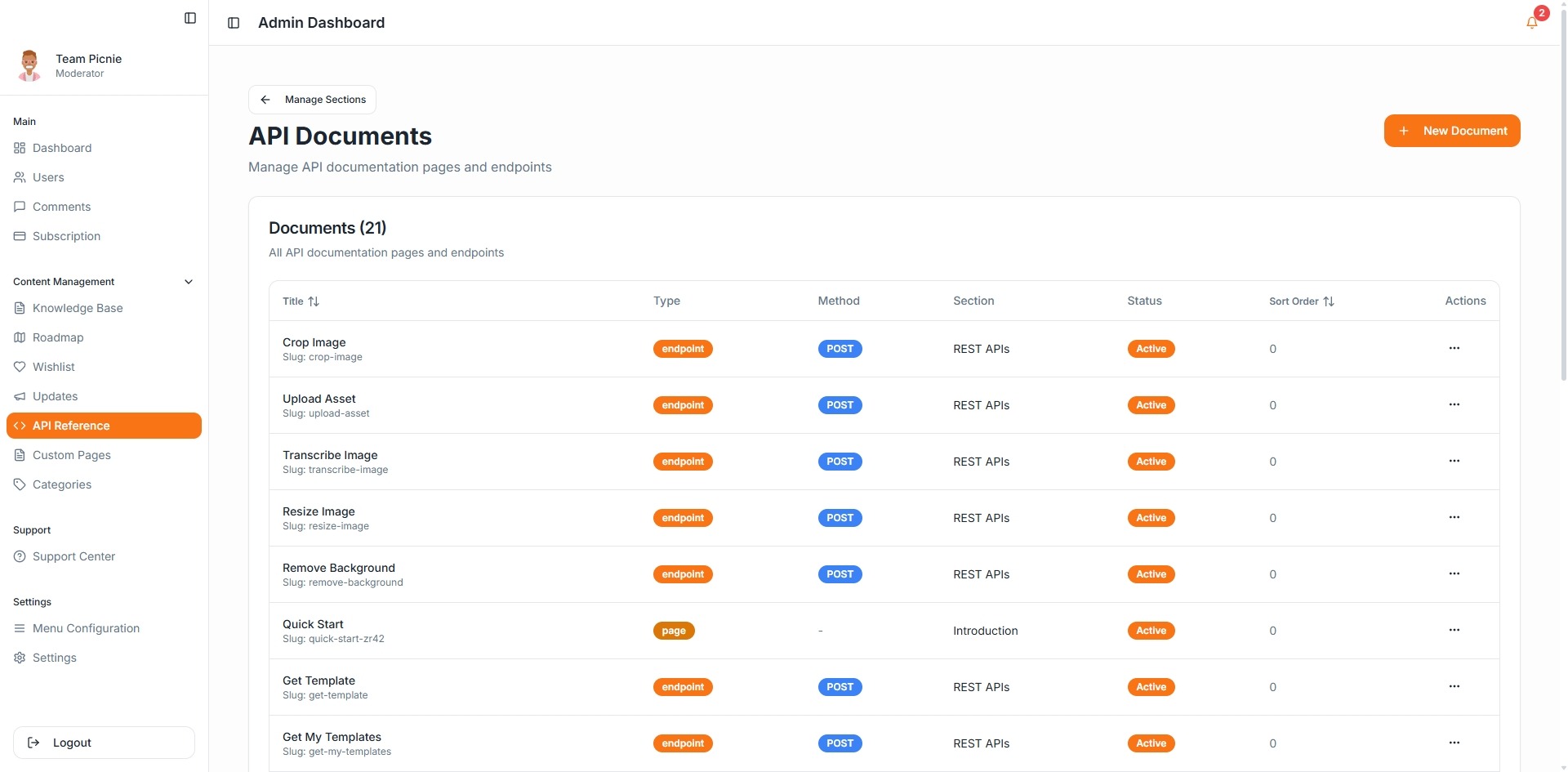
Creating a New API Document
Click Create Document.
You will see multiple tabs: Basics, Parameters, Code Samples, and Responses.
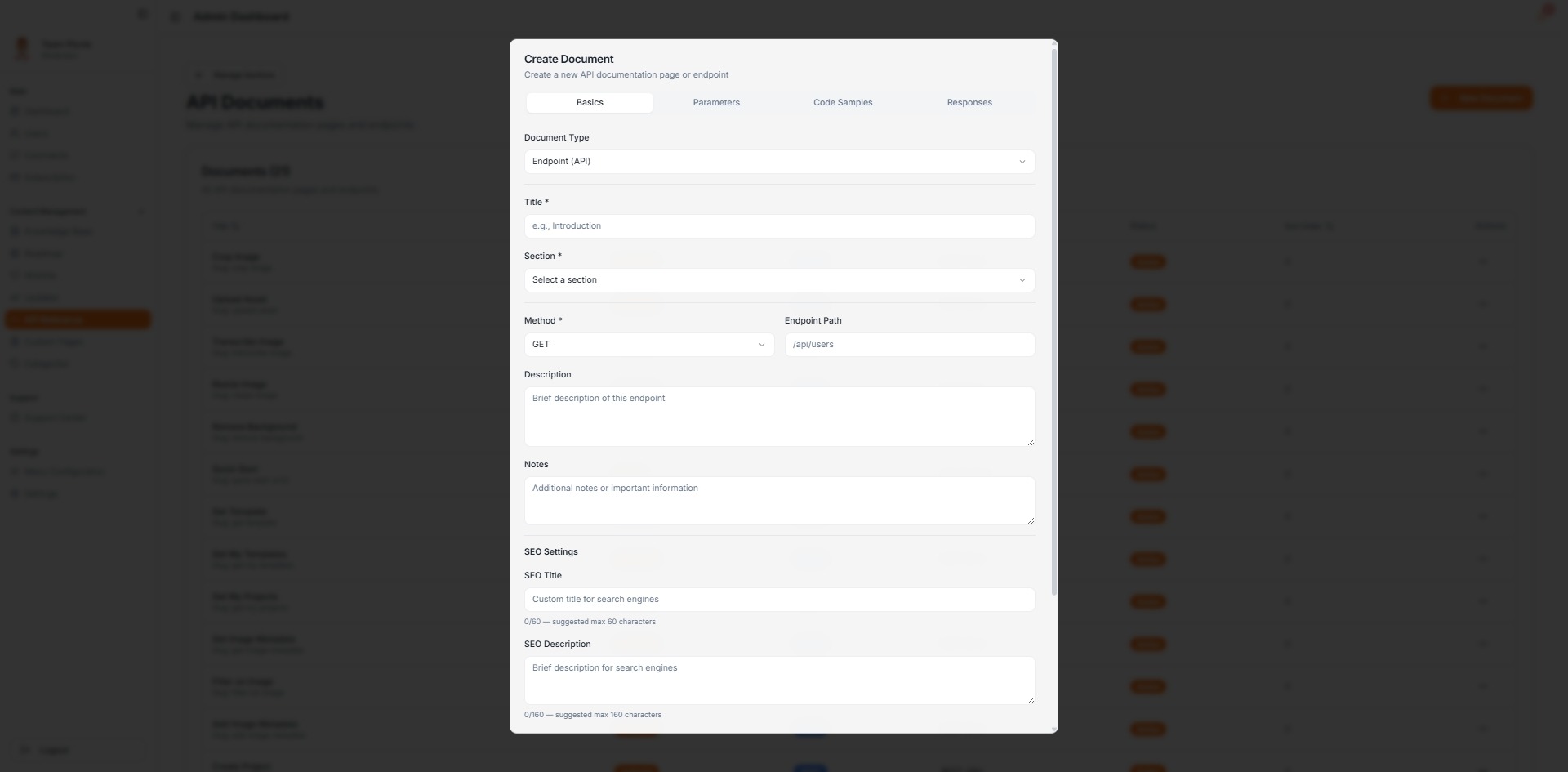
Basics Tab
In the Basics section, configure the core details of your API endpoint:
Document Type – Select Endpoint (API) or other supported types.
Title – Name of the API endpoint.
Section – Group the endpoint under a specific API category.
Method – Choose HTTP method (GET, POST, PUT, DELETE, etc.).
Endpoint Path – Example: /api/users
Description – Brief explanation of what the endpoint does.
Notes – Additional information or important usage details.
SEO Settings
You can configure:
SEO Title
SEO Description
SEO Keywords
Sort Order
Active toggle
This ensures your API documentation is search-friendly and well organized.
Parameters Tab
Document request parameters clearly for developers.
You can add:
Headers
Path Parameters
Query Parameters
Body Parameters
For each parameter, specify:
Name
Type
Required (Yes/No)
Description
Example value
This makes your API reference structured and easy to understand.
Code Samples Tab
Add code examples in different programming languages.
Select the programming language (e.g., cURL, JavaScript, Python).
Paste your code snippet.
Click Add Code Sample.
Providing multi-language examples improves developer adoption.
Responses Tab
Add response examples for different HTTP status codes.
Response Name – Example: 200 OK, 404 Not Found
Status Code
Content Type – Example: application/json
Response Body – JSON response sample
Click Add Response Sample to include multiple response variations.
Saving the Document
After completing all required sections, click Save.
Your API documentation will now be visible under the selected section.
Best Practices for API Documentation
Keep endpoint names consistent.
Always include example request and response samples.
Clearly mark required parameters.
Group endpoints logically using sections.
Keep descriptions concise but developer-focused.
The API Reference module helps you maintain structured, professional, and developer-friendly documentation directly inside CandyDocs.